BitLocker’s 48-digit recovery key: find it before Windows asks for it
Microsoft can't recover a lost one. Check your account now, while the laptop still opens.
When Windows can’t unlock a BitLocker-encrypted drive on its own, it stops at startup and asks for a 48-digit recovery key. A hardware change or a security trigger can set it off, and an external drive will ask too if you’ve forgotten its unlock password.
Microsoft is blunt about the stakes: its support team cannot retrieve, provide or recreate a lost key. So the time to find out where yours lives is today, while the machine still boots normally.
Step one: note the key ID
The recovery screen shows a key ID. Write down its first eight digits; they tell you which key to use if you have more than one. From Windows 11 version 24H2, the screen also hints at the Microsoft account the key is tied to.
Where the key is usually kept
- Your Microsoft account. On another device, go to aka.ms/myrecoverykey, sign in and match the key ID. If someone else set up the laptop or switched on encryption, the key may be in their account instead.
- A work or school account. If the device was ever signed in to an organisation, try aka.ms/aadrecoverykey, then Devices, your device and View BitLocker Keys, or ask that organisation’s IT team.
- A printout. Check wherever you keep the laptop’s paperwork.
- A USB stick. Plug it into the locked machine and follow the prompts, or read the saved text file on another computer.
If it’s nowhere
A company-managed laptop’s key sits with its IT department. Otherwise the only way back in is to reset Windows, which deletes all your files.
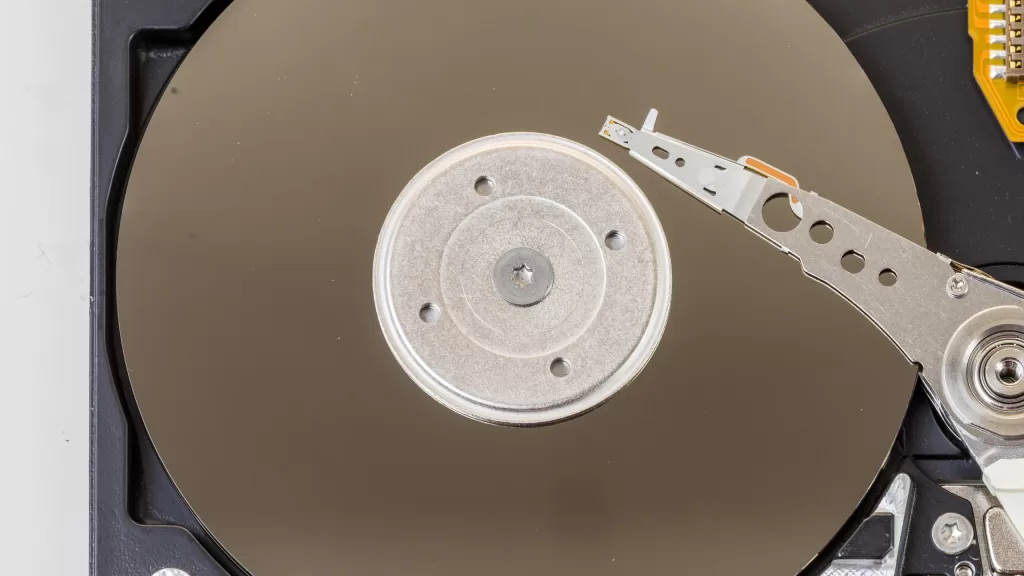
Photo: a laptop hard drive with its cover removed, by Raimond Spekking, CC BY-SA 4.0 via Wikimedia Commons.
Source: Microsoft Support, “Find your BitLocker recovery key”, checked 21 October 2026.
Kuwait One, once a week.
The most useful stories we published this week, in your inbox.
No spam. Unsubscribe anytime.