WhatsApp two-step verification: the password that stops a stolen code
A scammer who tricks you out of the SMS still hits a second lock. Setup on Android and iPhone, plus what happens if you forget it.
Most WhatsApp accounts that get stolen aren’t hacked at all. Someone sends a message saying you’ve won something or your parcel is waiting, then asks you to forward “the code you just got”. That six-digit registration code is all it takes to move your account onto their phone. Two-step verification adds a second lock: a password only you know.
What has changed
Two-step verification used to be a six-digit PIN. WhatsApp’s help centre now says it is replacing that PIN with a password, and anyone with an old PIN can switch over. The new password needs at least 8 characters, including at least one letter and one number.
Turning it on (Android)
- Tap the three dots, then Settings > Account > Two-step verification.
- Toggle on Turn on two-step verification.
- Create a strong password and confirm it.
- Add an email address you can get into, or skip.
- Choose Trust this device, or skip.
Turning it on (iPhone)
Same steps, starting from You > Account > Two-step verification.
Don’t skip the email
If you forget the password at login, WhatsApp offers Verify another way: a code by email, SMS or voice call. Adding an email under Account > Email address keeps that door open; WhatsApp sends a six-digit code to confirm it.
If none of that works, a Reset account option unlocks after a few days, and it can’t be undone. If you last logged in less than 30 days ago, you lose the messages received since then; if it’s been more than 30 days, your messages and your profile both go.
Trusted devices and passkeys
Once it’s on, you can mark the phone you use every day as a trusted device for quicker logins. Trusted devices are not the same as linked devices such as WhatsApp Web or Desktop. The help pages also cover passkeys, which tie login to your fingerprint, face or screen lock.
Forgot the password but still logged in? You can set a new one without the old one: your profile > Account > Password > Change password.
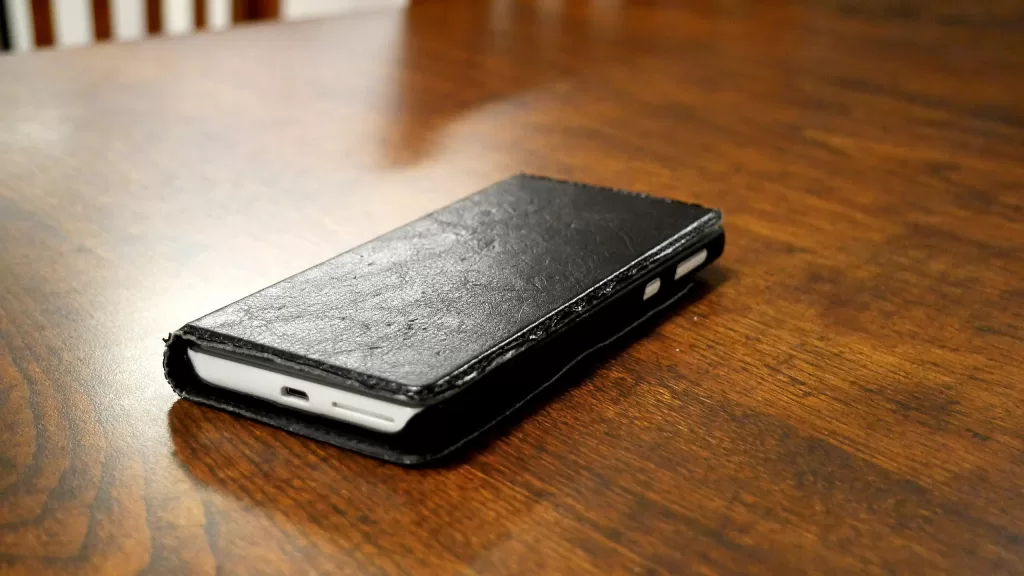
Photo: a smartphone in a leather case on a wooden table. Santeri Viinamäki, CC BY-SA 4.0, via Wikimedia Commons.
Source: WhatsApp Help Center, “How to manage two-step verification settings”, “About two-step verification” and “Can’t remember password” (Android and iOS), read 28 November 2026.
Kuwait One, once a week.
The most useful stories we published this week, in your inbox.
No spam. Unsubscribe anytime.