
Most people who lose a phone discover at that moment that tracking was never switched on, or that their Google account sends its sign-in codes to the very phone that is missing. The steps below come from Google’s Android help page as it stands today. They take about five minutes.
Google’s own caveat: some steps only work on Android 14 and later, and menu names can differ slightly between manufacturers.
1. Check you’re signed in to Google
Open Settings, then Passwords, passkeys and accounts. Your account address should be listed.
2. Turn on location
In Settings, open Location and switch on Use location.
3. Turn on Find Hub
In Settings, open Security, then Find Hub, and make sure Allow device to be located is on. That is what lets you ring, locate, secure and erase the phone later.
4. Let it be found while offline
In Settings, open Google, then All services, then Find Hub, and tap Find your offline devices. There are three options:
- Without network: your phone doesn’t join the network; you only see its last stored location from when it was online.
- With network in busy places only: other Android devices help locate it in places such as airports and crowded walkways.
- With network everywhere: busy and remote areas alike.
The network only works for you if your phone has a PIN, pattern or password screen lock. Some models, such as the Pixel 8 series, can still be located for several hours after the battery dies or the phone is switched off, provided you picked one of the network options and Bluetooth and location were on when it shut down.
5. Don’t hide it on Google Play
Go to play.google.com/library/devices and check that Show In Menus is ticked. A device hidden there won’t appear in Find Hub.
6. Test it now
Open android.com/find on a computer and sign in. If the phone has more than one user profile, use the account on the main profile. If your phone shows up on the map, you’re set.
7. Install the Find Hub app
It manages all your devices, and it has a guest mode, so you can sign in on a friend’s phone with your email and password.
8. Save your backup codes
This is the step everyone skips. To lock or erase a lost phone remotely, 2-Step Verification has to be on, but the lost phone may itself be your second step. So create backup codes: in your Google Account go to Security & sign-in, then 2-Step Verification, then Backup codes, and keep them somewhere other than the phone. Google warns that without backup codes or a security key you may have to ask your mobile operator for a new SIM.
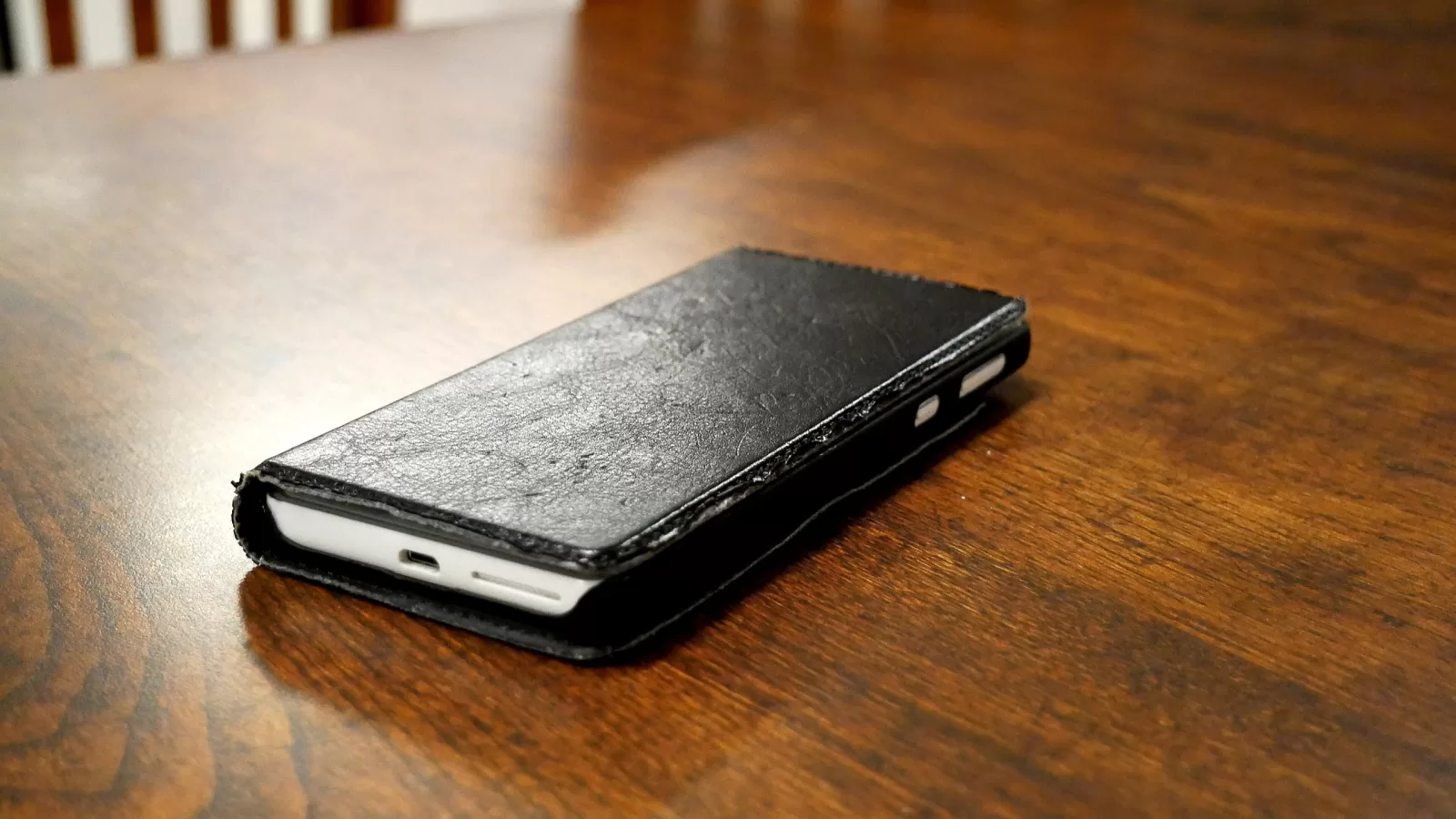
Photo: a phone in a leather case on a wooden table, by Santeri Viinamäki, CC BY-SA 4.0, via Wikimedia Commons.
Source: Google Android Help, “Be ready to find a lost Android device”, checked on 6 October 2026.
Kuwait One, once a week.
The most useful stories we published this week, in your inbox.
No spam. Unsubscribe anytime.