Guests asking for the Wi-Fi password? One tap on iPhone, a QR code on Android
No reading long strings aloud, no sticky note behind the router — and one method works across both systems.
A guest arrives and asks for the Wi-Fi, and you end up hunting for the sticker on the back of the router or spelling out a long string of characters. Your phone has two faster ways: an iPhone can hand the password to a nearby Apple device with one tap, and both iPhone and Android can show a QR code that any phone scans to join — without anyone seeing the characters.
iPhone to a nearby Apple device
- Unlock your iPhone and make sure it is connected to the network you want to share.
- Your guest picks the network name in Wi-Fi settings on their iPhone, iPad or Mac.
- A prompt appears on your phone; tap Share Password.
Apple lists three conditions: both devices within Bluetooth and Wi-Fi range, Personal Hotspot switched off, and each of you saved in the other’s contacts. If the prompt never shows, one of the three is usually missing.
A QR code from an iPhone
Open the Passwords app → Wi-Fi → choose the network → Show Network QR Code. Your guest scans it with their camera, on an iPhone or an Android phone. The same screen shows the password itself, for typing into something without a camera, such as a TV.
A QR code from Android
Settings → Network & internet → Internet → tap your network → Share. The phone displays a QR code for your guest to scan. Menu names can vary slightly between manufacturers.
Before you share
- The code is the key to the network: anyone who keeps a picture of it can rejoin whenever they are back in range. Show it on your screen rather than sending it as an image in a chat.
- A device that joins saves the network and reconnects on its own whenever it is nearby — that is how saved networks work on both Android and iPhone.
- To take back access, change the password in the router’s settings page; every saved device drops off until it is given the new one.
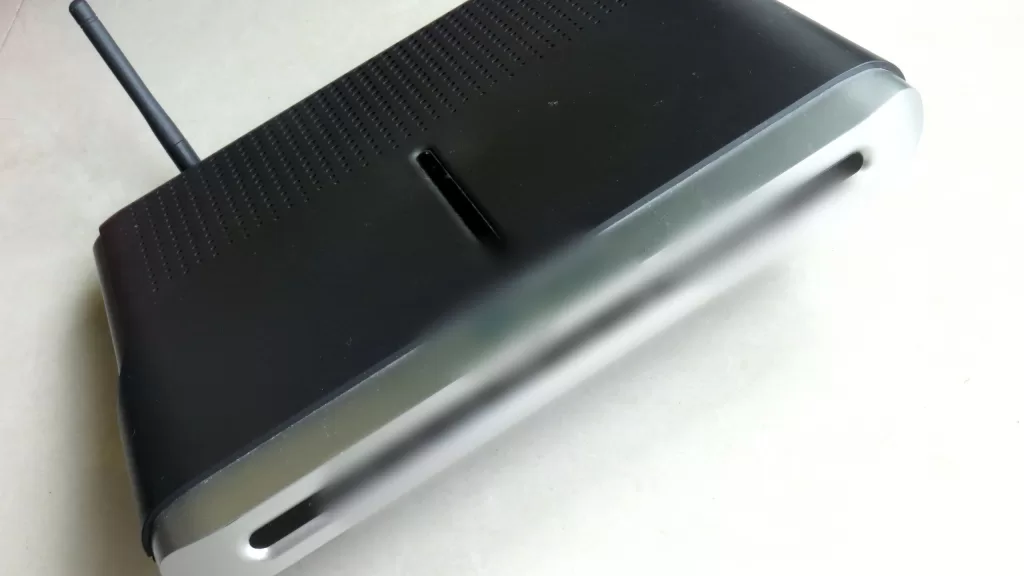
Photo: a home router with a single antenna; the logo and front-panel text are deliberately blurred. Photo by Mk2010, CC BY-SA 3.0, via Wikimedia Commons, modified by Kuwait One.
Source: Apple iPhone User Guide, find and share your Wi-Fi password; Android Help, connect to Wi-Fi networks.
Kuwait One, once a week.
The most useful stories we published this week, in your inbox.
No spam. Unsubscribe anytime.