Passkeys: Sign In to Google With Your Fingerprint, Not a Password
It cannot be phished, copied or written down, it works on Android 9 or iOS 16 and later, and biometric data stays on the handset.
A password gets typed, forgotten, and handed over to a fake login page that looks exactly like the real one. A passkey removes all three problems, because there is nothing to type. You unlock your Google Account the same way you unlock your phone: fingerprint, face scan or screen-lock PIN.
Google offers passkeys on every account. Here is what its own help page says, in the order you need it.
Why it beats a password
Google says a passkey can’t be shared, copied, written down or accidentally given to someone else, which is what makes it stronger against phishing.
Your fingerprint or face data never leaves the device and is never sent to Google. All the passkey proves is that you are holding your device and can unlock it.
If your account uses 2-Step Verification, signing in with a passkey skips the second step, since it already proves you own the device. Adding one doesn’t remove your password or any recovery options already on the account.
What you need first
- A computer on Windows 10, macOS Ventura or ChromeOS 109 or later, or a phone on Android 9 or iOS 16 or later.
- Chrome or Edge 109, Safari 16, or Firefox 122 or later.
- A screen lock turned on. On Apple devices, iCloud Keychain must be on as well.
- Bluetooth on, if you want to use your phone’s passkey to sign in on a computer.
Creating one
You create it from the sign-in options of your Google Account, on the phone or computer you are using; you may be asked to verify your identity first. After the first one, other devices may offer to create their own the next time you sign in.
Google’s one warning: never create a passkey on a shared device. Anyone who can unlock that device can get into your account, even after you sign out.
A new passkey can take up to seven days before it works at sign-in, unless you already have a trusted passkey or a physical security key.
Signing in on a computer without one
Enter your username on the Google sign-in page, then choose “Try another way” and “Use your passkey”. A QR code appears; scan it with your phone’s camera, then confirm on the phone with your fingerprint, face or PIN.
If you lose the phone
Remove its passkey from your account; your passkeys are listed under your sign-in options. And if you would rather keep the password as your first step, go to “Security & sign-in” and turn off “Skip password when possible”.
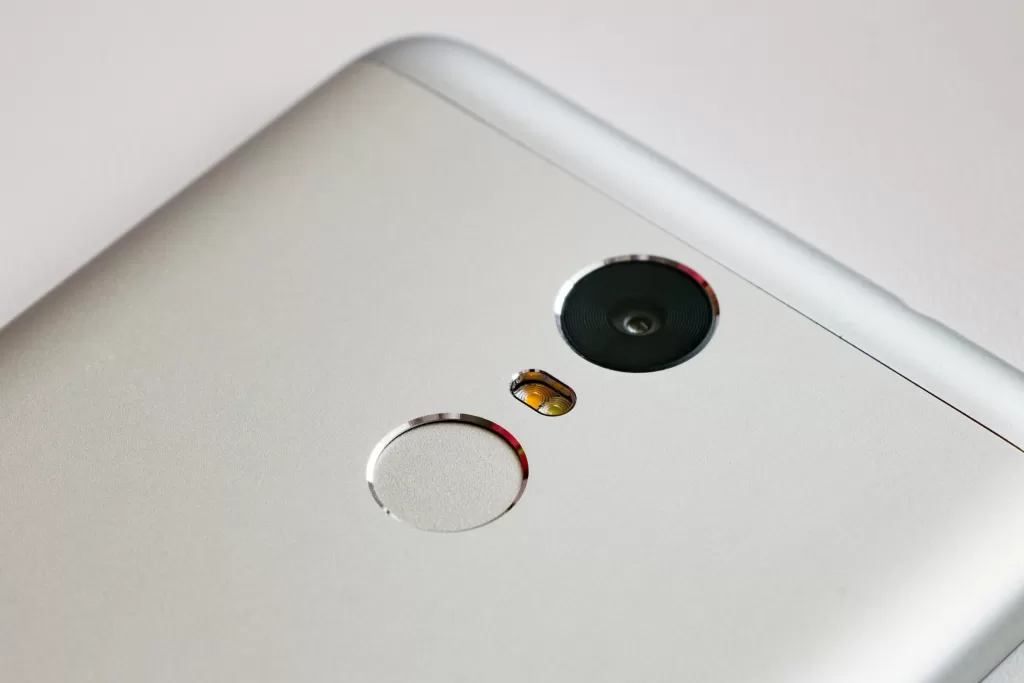
Photo: The fingerprint sensor on the back of a smartphone. Photograph by Ilya Plekhanov, CC BY-SA 4.0, via Wikimedia Commons.
Source: Google Account Help, “Sign in with a passkey instead of a password”.
Kuwait One, once a week.
The most useful stories we published this week, in your inbox.
No spam. Unsubscribe anytime.