Public USB ports at the airport: charge from the wall socket, not the port
Researchers in Graz fooled phones by eight makers using a doctored power brick. What keeps your files safe.
An airport lounge or a mall café, a row of bare USB ports, and a battery on 8 percent. The catch is that a USB cable carries data as well as power. That is the idea behind “juice jacking”: a tampered charger that tries to reach the files on your phone instead of just filling the battery.
What the Graz researchers found
Apple and Google answered the threat about a decade ago with a prompt before any data connection: “Trust This Computer?” on iPhone, and charge-only by default on Android. In August 2025 a team from Graz University of Technology in Austria presented an attack at the USENIX Security symposium that gets around both. They call it ChoiceJacking: a cheaply built charger fakes the user’s taps and approves its own data connection.
It reached photos, documents and app data on every device the team tested, from eight manufacturers including the six biggest by market share. On phones from two of those makers it pulled files while the screen was locked. The researchers disclosed everything first; Google, Samsung, Xiaomi and Apple acknowledged the flaws, and the team’s own slides list the fixes as Android 15 and iOS 18.4.
Before you plug in
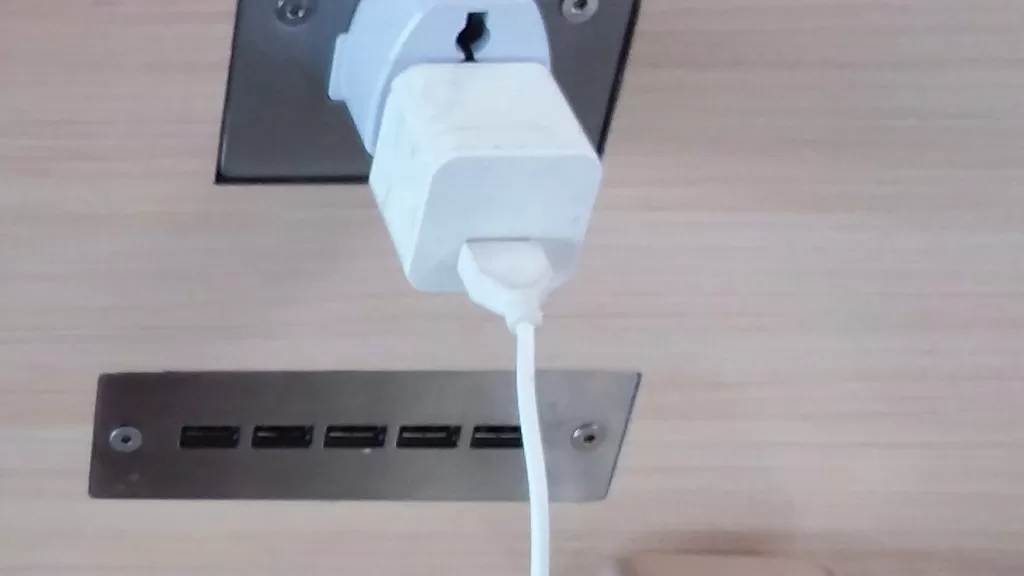
- Bring your own adapter and use the ordinary wall socket, not the bare USB port. An adapter passes power, nothing else.
- A power bank charged at home takes public ports out of the picture entirely.
- Update the phone. The fixes ship in iOS 18.4 and Android 15 onwards; a handset whose updates stopped earlier stays exposed.
- Refuse any prompt while charging. If “Trust This Computer?” or a file-transfer request appears while you are on a public charger, tap Don’t Trust and unplug. A charger never needs permission to charge.
- On Android, every connection starts as “Charging this device via USB” and only switches to File Transfer if you unlock the phone and pick it from the notification. Leave the notification alone.
Clear the iPhone’s trusted list
An iPhone remembers every computer or device you have trusted, and keeps trusting it until you change that. To wipe the list: Settings › General › Transfer or Reset iPhone › Reset › Reset Location & Privacy. The prompt then returns on every new connection.
Photo: a charger adapter in a power socket next to a row of USB ports in a departure lounge at Hong Kong International Airport. By Guso Kqfuam Shybioe, CC BY-SA 4.0 via Wikimedia Commons, cropped by Kuwait One.
Source: Apple Support, “About the Trust This Computer alert”; Android Help, transferring files by USB; “ChoiceJacking” by Florian Draschbacher et al., USENIX Security 2025.
Kuwait One, once a week.
The most useful stories we published this week, in your inbox.
No spam. Unsubscribe anytime.