One Wi-Fi name for every band: why splitting 2.4 and 5 GHz backfires
Apple's router guidance says separate labels make phones connect less reliably, and sets 20 MHz channels on the crowded lower frequency
Open the Wi-Fi list on a phone in many homes and you will see the house twice: one network with a plain name and a second one ending in “5G”. Routers broadcast on 2.4 GHz and 5 GHz, some on 6 GHz too. Giving each band its own name is a common habit. Apple’s own advice to people who run their network is the opposite.
One name, every band
Apple’s support page on router settings asks for a single, unique network name (SSID) across all bands. Giving the 2.4, 5 and 6 GHz bands different names, it says, can stop devices from connecting reliably, or from reaching every band the router offers. With one name, the device is free to move between bands instead of staying pinned to whichever name it was told to remember.
The same page warns against default or common names such as the manufacturer’s name or “wireless”. A device that meets another network with the same name will try to join it automatically.
Streets and lanes
Apple compares a band to a street that data travels on, and its channels to lanes. More bands means more capacity, so the advice is to switch on every band the router supports and leave channel selection on Auto.
Channel width is where the two bands part ways. Wider channels are faster but pick up and cause more interference. So 2.4 GHz should be set to 20 MHz, because that band is crowded with neighbours’ networks and Bluetooth devices. On 5 and 6 GHz, leave the width on Auto or all widths, since interference is less of a concern there.
Making the change
- Open the router’s settings page in a browser, or the app from its manufacturer.
- Back up the current settings first, and make sure the router’s firmware is up to date.
- Give every band the same network name, the same password and the same security setting.
- Set channel width to 20 MHz on 2.4 GHz and Auto on the higher bands.
- After saving, you may need to forget the network on each device and join it again so it picks up the new settings.
In a home with more than one router, Apple asks for the same name on all of them, each on a different channel if they sit close together.
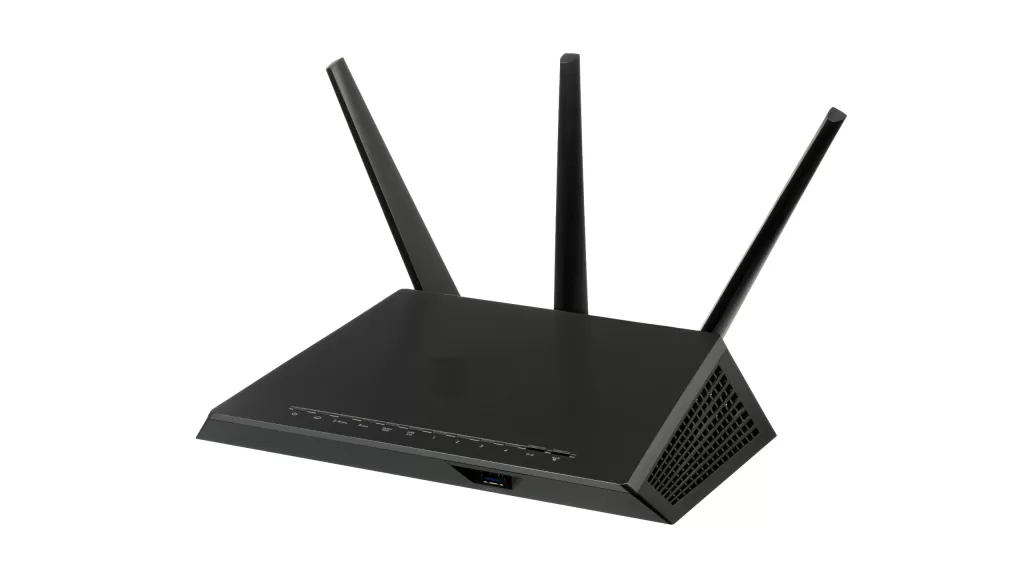
Photo: A home router with three antennas, maker’s name removed from the top. By Evan-Amos, public domain, via Wikimedia Commons, edited by Kuwait One.
Source: Apple Support, “Recommended settings for Wi-Fi routers and access points” (support.apple.com/102766), dated 14 July 2026, read on 15 October 2026.
Kuwait One, once a week.
The most useful stories we published this week, in your inbox.
No spam. Unsubscribe anytime.